Guide · iPhone Duo · testing
How to test an iPhone Duo app in the simulator: every pose, orientation and hinge angle
An iPhone Duo app has to work closed, open, half-open, turned, and sharing the screen with another app. Most bugs live in the states nobody opened. Here is the test plan: eight states, what to look for in each and why Apple says it matters, how to run them in the Xcode 27.1 simulator, and how an AI agent can run them itself.
Verified
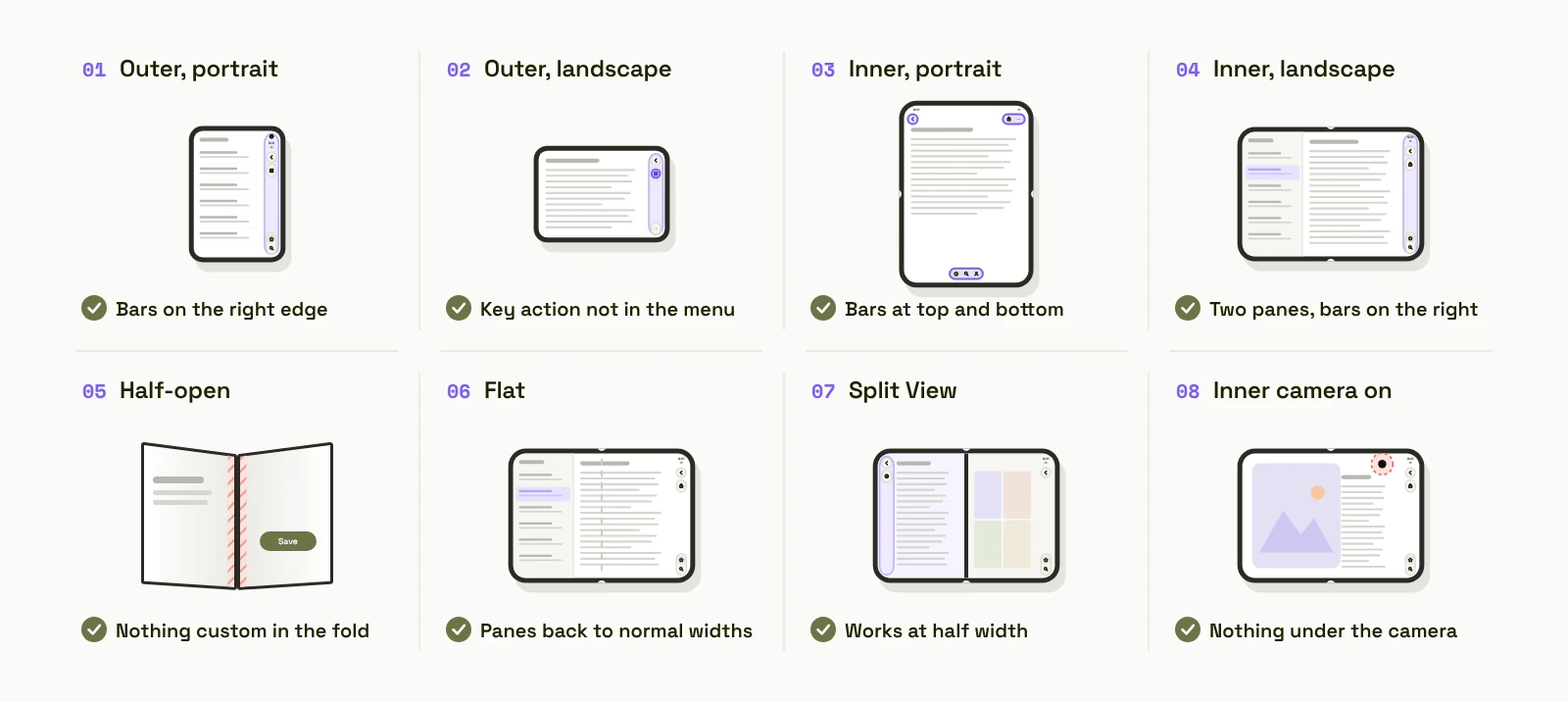
You do not need the phone to test an iPhone Duo app. Xcode 27.1, currently in beta, ships “a simulator that supports the all-new poses and orientations”, in Apple’s words. What you need is a list: the states the app will be seen in, and what to look for in each. Apple’s iPhone Duo sessions give that list, because each design rule depends on a state. The rules themselves are on iPhone Duo app development: Apple’s design rules; this page is how to check them.
Which poses should you test an iPhone Duo app in?
1. Outer display, portrait. The everyday iPhone layout, compact width. Look for: the toolbar and tab bar placed vertically along the side, every action showing an icon, nothing cut off.
2. Outer display, landscape. Compact in both directions, new on the Duo. Look for: content that still fits, the most-used action still visible rather than in the overflow menu.
3. Inner display, portrait. Regular width; Apple says the larger display “returns to a familiar iPhone layout with horizontal bars”. Look for: lists that became sidebars, no stretched phone layout, no fixed-width columns.
4. Inner display, landscape. Regular width, bars vertical again. Look for: two-pane screens laid out side by side, nothing hidden behind the bars.
5. Half-open, like a book. The fold becomes a reserved region that divides the screen; it “is only active when someone has folded the device”. Look for: custom buttons, sliders and floating buttons sitting in the fold. System sheets, alerts and menus move aside on their own; your custom controls do not.
6. Flat. The fold’s width is zero again. Look for: layouts that stay split when they no longer need to be.
7. Split View, half the inner display. “All apps participate in multitasking on iPhone Duo.” Look for: every screen at half width, and nothing that assumes the app has the whole display.
8. Camera on, inner display. The FaceTime camera is a reserved region that is “active when the camera is active”. Look for: controls or content under the camera area during a video call or capture.
And the transitions. Open a sheet, start typing, then open or close the phone. The task must continue with nothing lost. Then try opening a second window of your app on the outer display; Apple says “new windows cannot be created” there, so the app has to handle the refusal.
How do you test an iPhone Duo app in the Xcode 27.1 simulator?
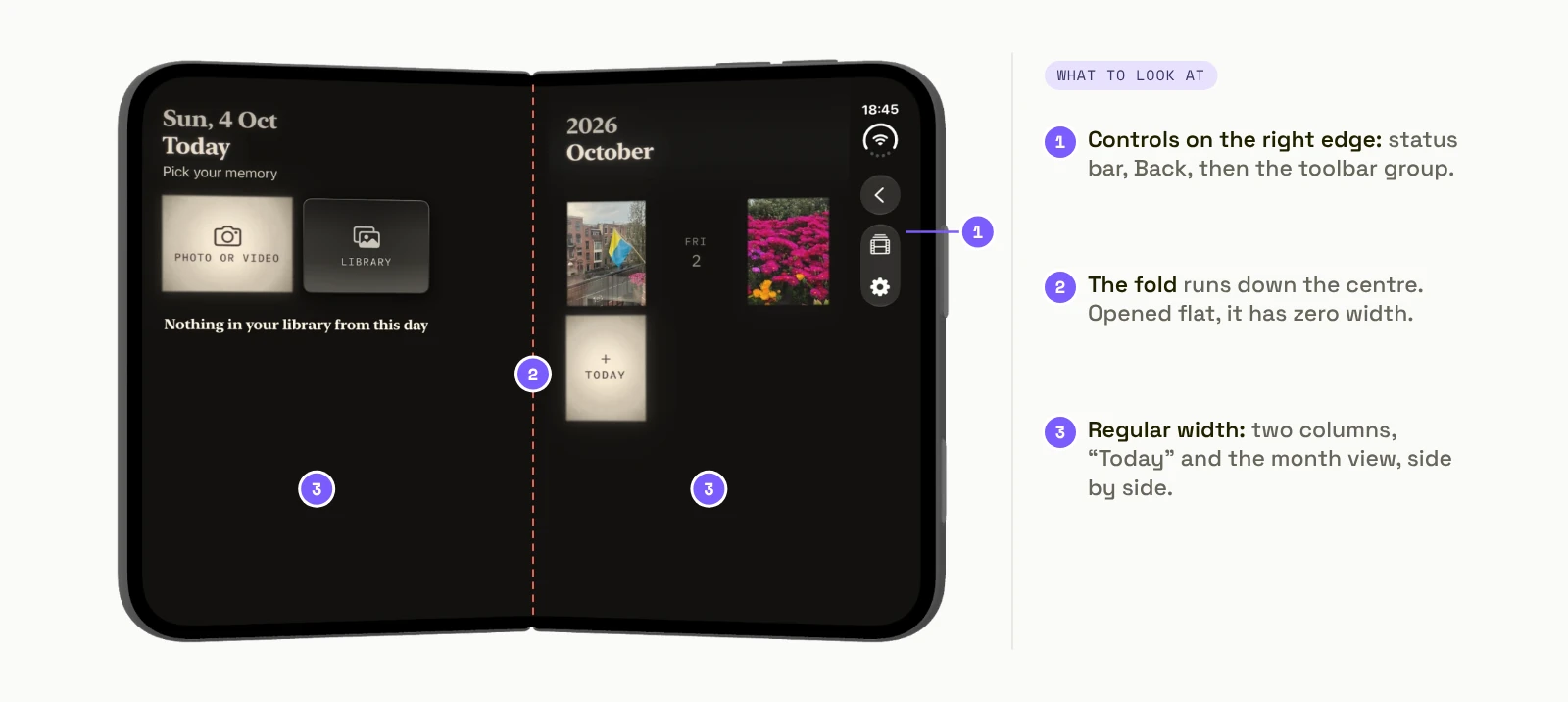
Install Xcode 27.1 beta alongside the shipping Xcode, add the iOS 27.1 platform, and run the app on the iPhone Duo simulator; in Xcode 27 the simulator lives in Device Hub, which replaces the Simulator app. Then go through the eight states in order, one screen at a time, and write down what you see in each. Two habits make it reliable:
Test every screen in every state, not every state on the home screen. Bugs hide in the screen four taps deep: the settings page, the edit form, the empty state.
Test the transitions, not only the poses. Most breakage happens while the phone opens or closes, with a sheet or a keyboard on screen.
Done by hand, the plan is long: eight states times every screen, repeated after every change that touches layout. That is why it gets skipped, and why the skipped states are where the bugs are.
Why do AI coding agents skip iPhone Duo poses?
An agent can build the app and launch it in the simulator. With the default tooling it cannot open or close the Duo, rotate it, or set the hinge angle, so it tests the state the simulator started in and reports the feature done. We ran the same prompt and the same model in Xcode’s agent and in Modaal. In Xcode, the agent asked for permission 16 times before we stopped it, could not fold the Duo, and reported displays “not checked” and rotation “not tested”, with the conclusion: “probably fine, going by the code, but not yet confirmed on screen.” How AI agents test iPhone apps in the simulator explains the gap in general, for iPad and landscape too.
How does Modaal’s agent test every iPhone Duo pose?
Modaal gives the agent the controls the default tooling lacks: start and stop the simulator, open and close the Duo, rotate it, set the hinge angle in small steps, and set the device’s pose. After it builds a feature, the agent puts the simulator through the states in the plan, reads each screen, fixes what it finds, and only then reports the feature done. In our recorded run, it “walked it through folding, unfolding, half-open angles and all four orientations” and reported seven poses tested, seven passed.
You still own the plan. Write the states into the PRD (“every screen works on the outer display in portrait and landscape, the inner display in portrait and landscape, half-open, and at half width in Split View”) and the agent tests against that line. What it cannot replace is the real phone in your hand once you have one: weight, glare, how the fold feels under a thumb.
Does the same test work on an Android foldable?
Android foldables have had folded, open and tabletop postures since 2019, and the Android emulator has supported rotation and folding for longer than the iOS simulator. In Modaal, each feature’s logic is written once and rendered in SwiftUI on iPhone and Jetpack Compose on Android, so the agent runs the same plan on both. In our run, the Android pass rotated the app to 90°, 180° and 270° and found a bug the iPhone pass did not have: the Save and Cancel buttons off-screen in one rotation. One plan, two foldables, two sets of fixes.
The iPhone Duo test checklist
Copy this into the PRD or the release checklist:
- Every screen, outer display, portrait and landscape: bars on the side, every action has an icon, nothing cut off.
- Every screen, inner display, portrait and landscape: sidebars where lists were, no stretched phone layout.
- Half-open: no custom control in the fold.
- Flat: no split that is no longer needed.
- Split View at half width: every screen usable.
- Camera on: nothing under the camera.
- Transitions: open a sheet, type, open or close the phone; nothing lost.
- A second window on the outer display: the app handles the refusal.
Then build with Xcode 27.1 and submit; how to make an iPhone Duo app covers the first-archive workaround the current beta needs. The Free plan of Modaal covers one project with unlimited prompts on one platform; Pro is €9 per user per month billed annually (€15 monthly) and adds both platforms, TestFlight distribution and Git collaboration (/pricing).
iPhone Duo states: what to check and why
| State | What to check | Why (Apple) |
|---|---|---|
| Outer, portrait | Bars on the side, icons on every action | Controls “move to the side, where they’re also easier to reach” |
| Outer, landscape | Content fits; key action not in overflow | Items overflow bottom to top unless prioritised |
| Inner, portrait | Sidebars, no stretched layout | Inner portrait “returns to a familiar iPhone layout with horizontal bars” |
| Inner, landscape | Two panes side by side, nothing behind bars | Bars move to the side again |
| Half-open | No custom control in the fold | The fold is a reserved region when folded |
| Flat | No unnecessary split | The fold’s width is zero when flat |
| Split View | Every screen at half width | “All apps participate in multitasking” |
| Camera on | Nothing under the camera | Camera region is active when the camera is |
Quoted from Apple’s iPhone Duo Tech Talks, read 4 October 2026.
Frequently asked questions
Yes. Xcode 27.1 beta includes an iPhone Duo simulator that Apple says “supports the all-new poses and orientations”. Test every screen in every state there; use a real phone afterwards for feel, glare and the fold under your thumb.
Eight states: outer display in portrait and landscape, inner display in portrait and landscape, half-open, flat, half width in Split View, and with the camera on. Plus the transitions: open or close the phone with a sheet or keyboard on screen.
In Xcode 27.1 beta, after adding the iOS 27.1 platform. In Xcode 27 the simulator lives in Device Hub, which replaces the Simulator app. Select the iPhone Duo device and run your app on it.
Only if it can control the simulator’s pose. With the default tooling, an agent can build and launch the app but not fold, rotate or set the hinge angle, so it tests one state. Modaal gives its agent those controls, and it tests each state before reporting a feature done.
Custom controls in the fold when the phone is half-open, custom bars that do not move to the side, screens that assume the full display in Split View, and tasks lost when the phone opens or closes with a sheet open. System components handle most of these; custom ones do not.
Native iPhone and Android apps. Start free.
One project, two native apps: Swift for iPhone, Kotlin for Android.
Keep reading
- iPhone Duo app development: Apple’s design rules
The rules this plan checks.
- How AI agents test iPhone apps in the simulator
Why agents miss states, on iPad and landscape too.
- How to make an iPhone Duo app
Build and submit, including the first-archive workaround.
- iPhone Duo apps: what changes
Seven changes for an existing app.