
The short answer. Create a Google Play developer account ("There is a US$25 one-time registration fee"), verify your identity, build your app as an Android App Bundle that targets Android 16 (API level 36), create the app in Play Console, fill in the store listing and the app content declarations, and submit it for review.
If you opened a personal developer account after 13 November 2023, there is one more step before your first public release: a closed test with at least 12 testers who stay opted in for 14 days in a row.
What Google Play asks for
| Item | What Google requires |
|---|---|
| Registration fee | US$25, one time |
| Account type | Personal or organization; organizations need a D-U-N-S number |
| Identity | A government ID and a credit card under your legal name may be requested |
| App format | Android App Bundle (AAB) for new apps, since August 2021 |
| Target API level | Android 16 (API level 36) for new apps and updates, from 31 August 2026 |
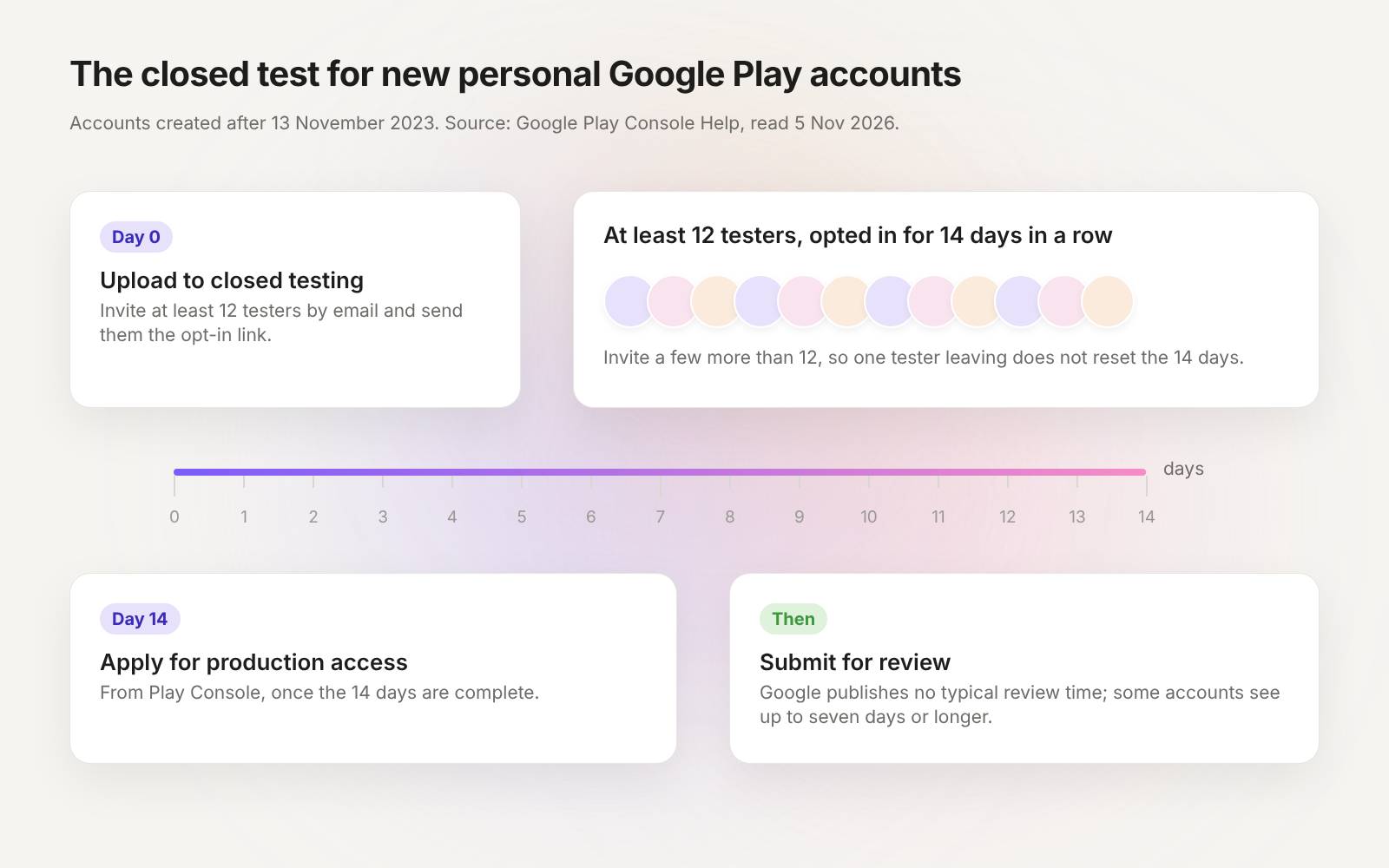
| Testing, new personal accounts | Closed test with at least 12 testers, opted in for at least 14 days in a row |
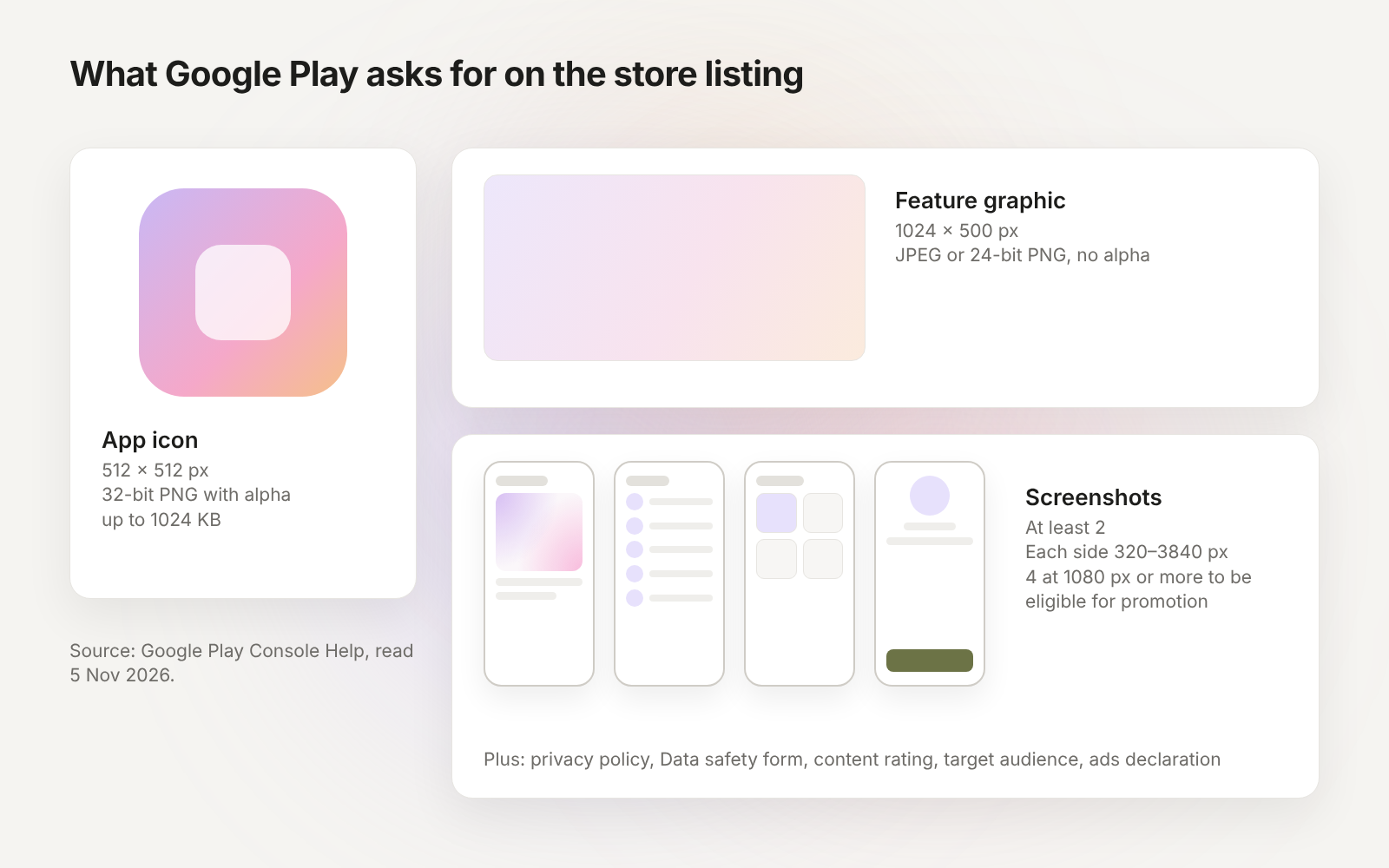
| App icon | 512 × 512 px, 32-bit PNG with alpha, up to 1024 KB |
| Feature graphic | 1024 × 500 px, JPEG or 24-bit PNG without alpha |
| Screenshots | At least 2; each side 320–3840 px |
| Privacy policy | On the store listing and inside the app, even if no data is collected |
| Data safety form | Required for every app, even one that collects no data |
| Review time | No typical time published; "up to seven days or longer" for some accounts |
From Google Play Console Help and developer.android.com, read 5 November 2026.
Step 1: Create a Google Play developer account
Google Play has "two developer account types, personal and organization." Pick organization if you publish as a company; Google requires an organization account for financial services apps, health apps, apps that use VpnService and government apps.
Fee. "There is a US$25 one-time registration fee."
Identity. Google says "you may be asked for a valid government ID and a credit card, both under your legal name." For a personal account, your legal name and address come from your Google Payments profile. Google verifies your email and phone with a one-time code.
Organization accounts. "To create a developer account for an organization, you must provide a D-U-N-S number," and you also give the organization’s website.
Step 2: Build an Android App Bundle that targets API 36
Google Play does not take an APK for a new app: "From August 2021, new apps are required to publish with the Android App Bundle on Google Play." You upload an .aab file, and Google Play uses it "to generate and serve optimized APKs for each device configuration".
Signing. With Play App Signing, "Google manages and protects your app’s signing key." New apps are enrolled automatically.
Target API level. "Starting on 31 August 2026: New apps and app updates must target Android 16 (API level 36) or higher." Wear OS and Android Automotive OS apps must target API 35, and Android TV and Android XR apps API 34. If your build tool or developer set an older target, update it before you upload.
Step 3: Create the app and fill in App content
In Play Console, create the app, then complete the declarations Google asks for before review.
Privacy policy. "You must link to a privacy policy on your store listing and within your app," and this applies "even if your app doesn’t access personal or sensitive user data".
Data safety. "Even developers with apps that do not collect any user data must complete this form."
Content rating. Answer the rating questionnaire. Google: "Unrated apps may be removed from Google Play."
Target audience and ads. "You must declare your app’s target age group," and "You must declare whether your app contains ads."
App access. If parts of the app need a login, give the reviewers a test account: "you must provide all required details to enable access to your app".
Step 4: Prepare the store listing
App icon. "512px by 512px", "32-bit PNG (with alpha)", "Maximum file size: 1024KB".
Feature graphic. "1024px by 500px", "JPEG or 24-bit PNG (no alpha)".
Screenshots. "You must provide a minimum of two screenshots across different device types to publish your store listing." Each side is between 320 px and 3840 px, and the long side is at most twice the short side. To be eligible for promotion on Google Play, apps need "at least four screenshots with minimum 1080px resolution."
Write the short and full descriptions with the words your users search for, and use the same app name as on your website and in the App Store.
Step 5: Run the closed test (12 testers, 14 days)
This step applies to "personal developer accounts created after November 13, 2023". Google’s rule: "You must run a closed test before applying to publish your app to production," with "a minimum of 12 testers who have been opted in continuously for at least 14 days".
- In Play Console, create a closed testing release and upload your app bundle.
- Add at least 12 testers by email and send them the opt-in link.
- Ask every tester to install the app and stay opted in for the full 14 days. A tester who leaves breaks the "continuously" count.
- Collect their feedback and ship fixes to the closed track during the test.
- After 14 days, apply for production access from Play Console.
Recruit testers you can reach: colleagues, friends, users on your web app’s mailing list or waitlist, or a community you are active in. Add a few more than 12, so one tester leaving does not reset your 14 days.
Step 6: Submit for review
Send the release to production and wait for the review. Google does not publish a typical review time. Its help page says some developer accounts may see "review times of up to seven days or longer in exceptional cases."
Before you submit, check three things: every app content declaration is complete, the privacy policy link opens, and the reviewers have a test login if your app needs one.
Android developer verification in 2026
Android now checks that apps on certified Android devices come from verified developers. Google says verification "helps deter bad actors and makes it harder for them to repeatedly spread harm."
For Google Play apps. Apps that use Play App Signing are registered automatically when eligible: "Google Play automatically registers 99% of apps."
Dates. From 30 September 2026, protections cover installs from participating stores "in Brazil, Indonesia, Singapore, and Thailand on certified devices running Android 7+." Google says verification "will be expanded globally for all apps on certified Android devices in 2027." APKs shared outside stores are covered in website to APK.
If your app is a website in a WebView
Google Play’s Spam policy says: "We don’t allow apps whose primary purpose is to drive affiliate traffic to a website or provide a webview of a website without permission from the website owner or administrator." A WebView of your own website is not what that sentence describes. The Limited Functionality policy also applies: "We do not allow apps that only have limited functionality and content."
So a store app made from your website needs features of its own. The three ways to build one (a Trusted Web Activity, a WebView wrapper, or a native rebuild) are compared in how to turn a website into an app.
Where Modaal fits
Modaal builds the Android app itself. Import your web app’s URL or Git repo on Website to app, review the migration plan, and your own AI agent builds Jetpack Compose screens for Android and SwiftUI screens for iPhone from one project, on the backend you already have. You then publish from your own Google Play account with the steps above. Modaal runs on a Mac.
Keep reading
- How to publish an app on the App Store
The Apple side: account, App Store Connect, TestFlight, review.
- TestFlight for Android
Google Play’s testing tracks compared with TestFlight.
- Website to APK
Three ways to turn a website into an Android app.
- How to build an Android app
The build routes before you publish.
Need the Android app first? Build it native.
Import your web app’s URL or repo. Your own AI agent builds Jetpack Compose for Android and SwiftUI for iPhone from one project, on the backend you already have.