
The short answer. Yes, you can take your app out of Bitrig. Its Free plan includes "Export your code at any time", and with GitHub connected "Bitrig can commit and push changes back up". Export the Xcode project or sync it to GitHub, import the repository or ZIP into Modaal, review the migration plan Modaal writes from your Swift code, and keep building. Modaal adds the Android app in Jetpack Compose next to the iPhone app in SwiftUI.
If your app uses Supabase, both apps connect to the same project, so your users and data stay where they are.
Can you export your code from Bitrig?
Yes. Three facts from Bitrig's own pages:
It is a real Xcode project. Bitrig's homepage: "Real Xcode projects, built with the full toolchain and latest SDKs." The screens are SwiftUI and the logic is Swift, so any tool that opens an Xcode project can read it.
Export is on the Free plan. The pricing page lists "Export your code at any time" for every account.
It syncs with GitHub. Bitrig's FAQ: "Open any local Xcode project in Bitrig, or connect your GitHub account and import an existing repository." Bitrig creates a new branch for each conversation and pushes your changes.
Bitrig is "a Mac app for building and shipping native Swift apps with AI" for "iPhone, iPad, Mac, Apple Watch, Apple TV, and Vision Pro". Android is not on that list.
How to export your Bitrig app: GitHub or ZIP
Option A, GitHub (recommended). In Bitrig, connect your GitHub account so the project syncs to a repository. Bitrig works on a new branch for each conversation, so merge the branch with your latest changes into the main branch before you move.
Option B, ZIP. Export the code from Bitrig and zip the Xcode project folder.
Either way, include any edits you made by hand in Xcode, so the export is the version your users have.
Where to move a Bitrig app
Because the export is a standard Xcode project, you have two routes:
Open it in Xcode and work on it yourself. Use Xcode with your own AI agent on the Swift code. This keeps you on iPhone only, and you decide the structure of the app as it grows.
Move it to Modaal. Modaal is a Mac app, like Bitrig, where your own AI agent (Claude Code, Codex, Cursor and ten more) builds native apps: SwiftUI on iPhone and Jetpack Compose on Android, from one project. You keep working in a builder, and you get the Android app as well. Our Bitrig alternatives page compares the two tools.
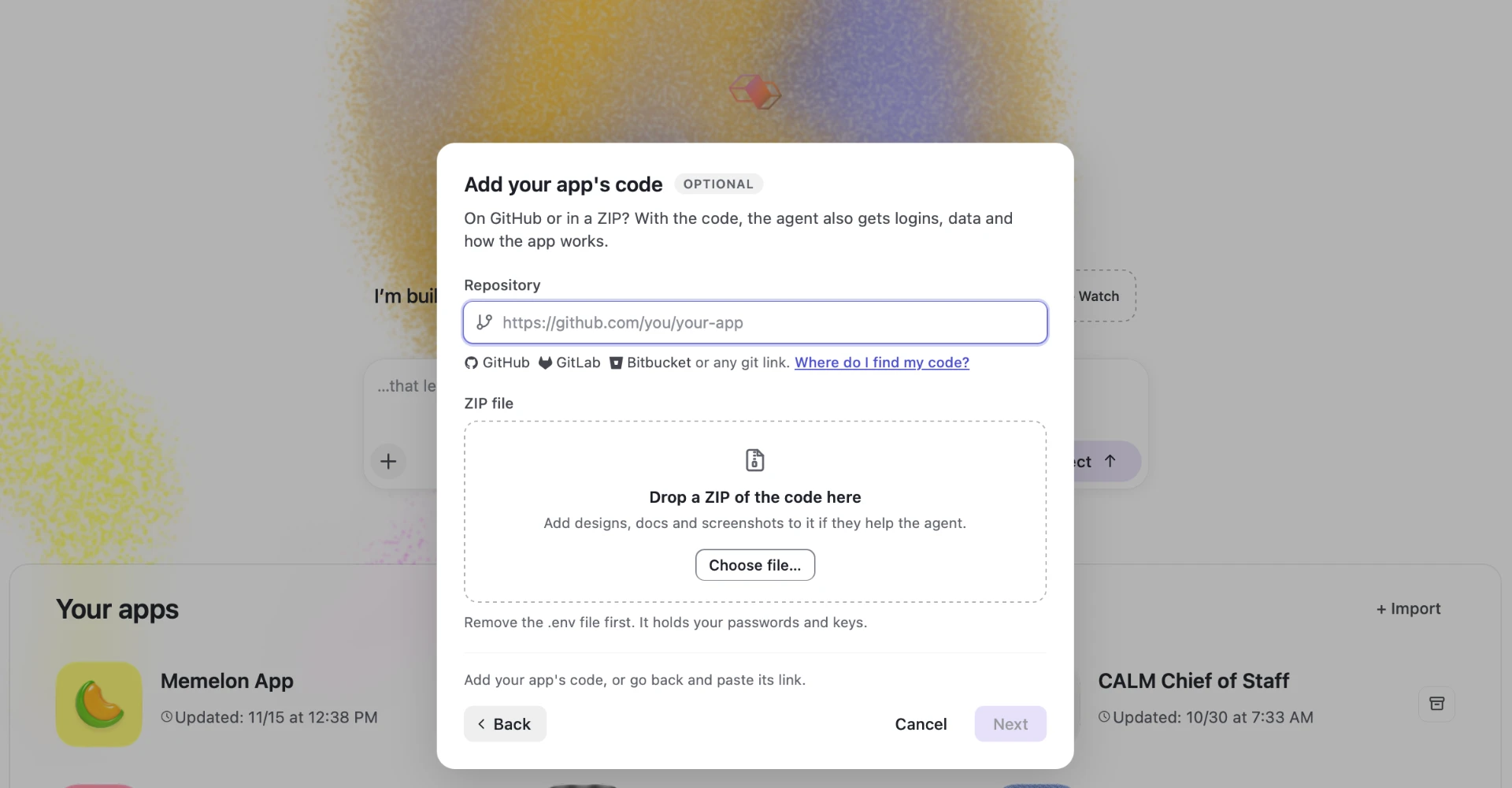
How to move your Bitrig app to Modaal, step by step
1. Start an import. Open Modaal, click + in the prompt box (or + Import next to Your apps) and choose to bring an existing app. A Bitrig app has no web address, so leave the link field empty and add the code: paste the repository link (GitHub, GitLab, Bitbucket or any git host you can clone from) or upload the ZIP.
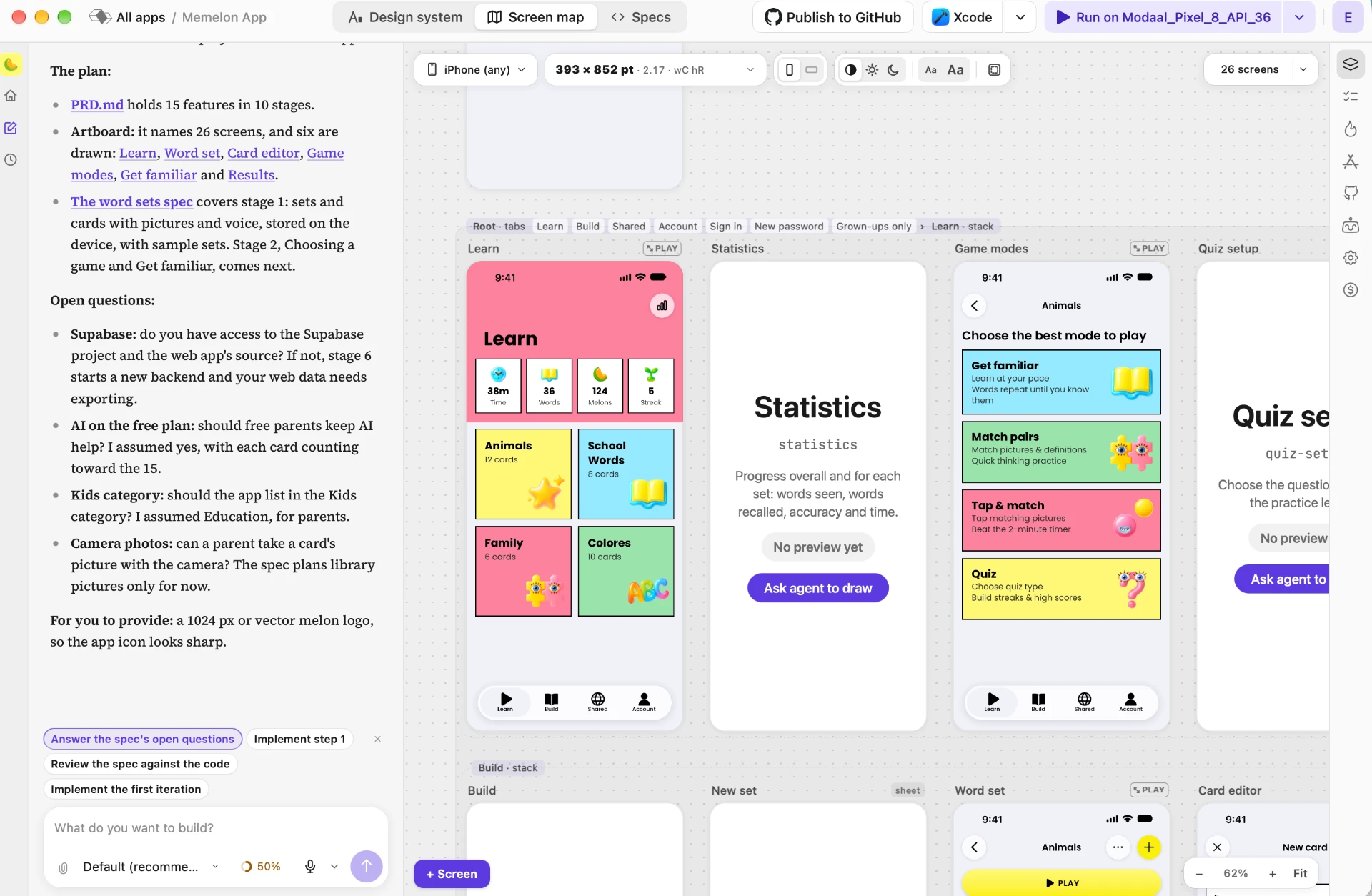
2. Review the migration plan. Modaal reads the Swift code (the screens, the navigation, the data model and the calls to your backend) and turns it into a list of screens and flows to build, in order. Each item is crossed out once it is built. Check the parts of your app that use Apple-only services; the table below shows what each one becomes on Android.
3. Build flow by flow. Your agent builds one flow at a time, following Apple's and Google's design guidelines for each platform. Check each flow in the iPhone simulator and the Android emulator before the next one starts.
4. Publish. Send the iPhone build to TestFlight and the App Store as before, and upload the Android App Bundle to Google Play. A new personal Google Play account first runs a closed test with at least 12 testers for 14 days; see How to publish an app on Google Play.
What changes when your Bitrig app also runs on Android
Most of the app moves as it is: screens, flows, the data model and the calls to your backend. A few parts use Apple services that have a different Android equivalent:
| In your Bitrig app (iPhone) | On Android | What to do |
|---|---|---|
| CloudKit (iCloud data) | No CloudKit SDK for Android | Move the data to a shared backend such as Supabase first |
| Supabase | Supabase | Keep the same project; nothing moves |
| StoreKit in-app purchases | Google Play Billing | Set up the products again in Google Play Console |
| Push notifications (APNs) | Firebase Cloud Messaging | Add an FCM setup for the Android app |
| Sign in with Apple | Sign in with Google, email | Keep Apple sign-in on iPhone; add Google on Android |
| HealthKit | Health Connect | Request the same data types on Android |
| WidgetKit widgets | Android app widgets | Rebuilt as part of the Android app |
| Apple Watch app | Not available | Stays Apple-only |
Bitrig quotes from bitrig.com and bitrig.com/pricing, read 10 November 2026. Android equivalents are the standard Google services.
If your app uses CloudKit: CloudKit is Apple's iCloud database, and Apple publishes no CloudKit SDK for Android. Move the data to a backend both apps can reach before the Android app can show the same data. If it uses Supabase: both apps connect to the same project.
Before you move: checklist
After the move
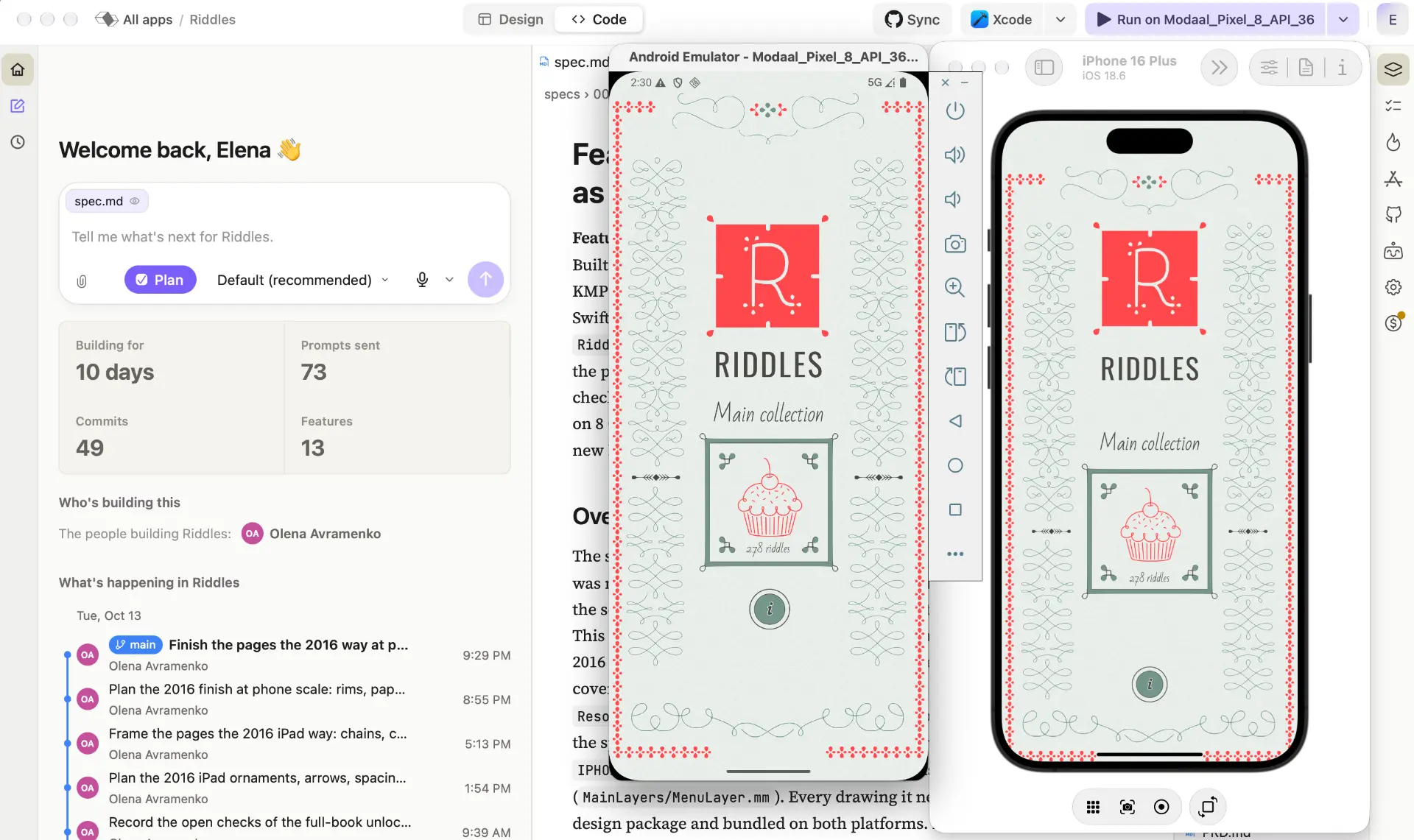
You keep building both apps in Modaal: describe a change in the prompt box, and the agent adds it to the plan and updates the iPhone and Android app from the same project.
Your Bitrig project and its GitHub repository stay as they are. Modaal works on its own project made from the code you imported, and you can export that code at any time too.
Keep reading
- Bitrig alternatives
How Bitrig and Modaal compare.
- Export code from Lovable
The same move for a Lovable app.
- Convert an iOS app to Android
The general guide for any iPhone app.
- How to publish an app on Google Play
Account, 12 testers, listing and review.
Move your Bitrig app to Modaal
Import the Bitrig repository or ZIP, review the migration plan, and keep building your app for iPhone and Android on the backend you already have.