
Phones carry 59% of web traffic worldwide (StatCounter, September 2026), while people spend less than 6% of their smartphone time in browsers and search engine apps (DataReportal, Digital 2025, from data.ai). Many of your users already open your web app on a phone. Whether they need a mobile app depends on what they do with your product, not on the technology.
This guide is for people who already have a working web app built in Lovable, Bolt, Replit or a similar tool. It has four steps:
- List what your users do with the product (jobs to be done).
- Check which of those jobs need what only a mobile app does well.
- Decide what to build: web, mobile or both.
- Choose how to build it.
At the end there is a checklist you can tick off.
Step 1: Start with the jobs your users do
Write down every job a user does with your product. A job is one thing they come to get done, such as "log today's workout" or "send an invoice". For each job, answer four questions:
- What does the user want to get done?
- Where are they when they do it: at a desk, on the street, at the gym, in a shop?
- How often: once a month, once a week, several times a day?
- Which device is in their hand at that moment?
If you have analytics on the web app, check them: the share of visits from phones and the pages people open on a phone tell you which jobs already happen there.
Example jobs and answers:
| Job | Where | How often | Device |
|---|---|---|---|
| Tick off today's habit | Anywhere | Several times a day | Phone |
| Log a workout | Gym, outdoors | Daily | Phone, watch |
| Scan a receipt | Shop, café | Several times a week | Phone |
| Find a place nearby | Street | Weekly | Phone |
| Review a monthly report | Office | Monthly | Laptop |
| Edit a long document | Desk | Weekly | Laptop |
Example jobs. Replace them with the jobs of your own users.
If most of your important jobs land in the Phone column, your product needs a mobile app. If they land in the Laptop column, your web app is enough.
Step 2: Check what a mobile app gives those jobs
Take each phone job from Step 1 and match it to the capabilities below. These are the things a web app cannot do well, even when it is installed on the home screen as a progressive web app (PWA). Our PWA vs native app guide covers the technical side.
| Capability | What it gives the user | Jobs it fits | Limit on the web |
|---|---|---|---|
| Push notifications | Reminders, daily check-ins, alerts when something changes | Habits, tracking, social | On iPhone, web push works only after the user adds the site to the home screen |
| Camera and photos | Scanning, taking pictures, uploading straight from the phone | Receipts, documents, social posts | Live scanning is slow and unreliable in the browser |
| Location | Maps, nearby places, tracking while moving | Delivery, running, travel, local search | Location stops when the browser tab closes |
| Offline use | Working without internet and syncing later | Field work, travel, gyms with bad signal | Needs extra setup; Safari can delete stored data after 7 days without a visit |
| Health and sensors | Steps, workouts, Apple Watch data | Fitness, sleep, wellbeing | No access to Apple Health or the watch |
| Home screen and widgets | One tap to open, quick info without opening the app | Habits, to-dos, daily stats | No widgets |
Web limits as of November 2026, for Safari on iPhone and Chrome on Android.
Most products that need mobile are B2C: habit, tracking and social apps, or on-the-go tools. People open them many times a day on the phone, not on a laptop.
A job that matches none of these capabilities can stay on the web, even if people do it on a phone. A mobile-friendly web page is enough to read an article or fill in a form once.
Step 3: Decide: web, mobile or both
Sometimes a product needs both for a good experience. Sometimes one is enough. Use the jobs from Step 1 and the capabilities from Step 2:
| Build | Choose it when | Example |
|---|---|---|
| Web only | Jobs happen at a desk, a few times a week, with long text or big tables | Admin dashboard, reporting tool |
| Mobile only | Jobs happen on the go, many times a day, and need at least one capability from Step 2 | Habit tracker, running app |
| Both | Users do quick jobs on the phone and long jobs on a laptop | Mobile app to log expenses, web app to review and export them |
Pick the row that matches most of your important jobs.
If you pick Both, keep one backend (for example Supabase or Firebase) so the web app and the mobile app share the same users and data. Users then sign in with the same account on both, and what they log on the phone shows up on the laptop.
Step 4: Choose how to build it
There are three ways to turn a web app into a mobile app.
| Approach | How it works | What you get | What you miss |
|---|---|---|---|
| Website in an app shell (Capacitor, Despia) | Wraps your existing site in an iOS and Android app | Fast, a store listing, basic push | Web UI on the phone; Apple can reject apps that are only a website (App Store guideline 4.2) |
| Cross-platform rebuild (React Native, Flutter) | One new codebase that runs on both platforms | Closer-to-native UI, most device features | A JavaScript or Dart layer between your app and the phone; widgets and watch apps need extra native code |
| Native rebuild (Swift for iOS, Kotlin for Android) | Two apps built with Apple's and Google's own tools | Every capability from Step 2, the platform's own look and feel | Normally two codebases to keep in sync |
App Store Review Guideline 4.2 asks for "features, content, and UI that elevate it beyond a repackaged website".
If your jobs need two or more capabilities from Step 2, a native rebuild gives you all of them without workarounds. If you need only a store listing and basic push, an app shell is the fastest start; see What is Capacitor and Native vs cross-platform for the details of each route.
Building native with Modaal
Modaal rebuilds a web app as native iOS and Android apps:
- Paste your web app's URL. A GitHub repository or a ZIP is optional.
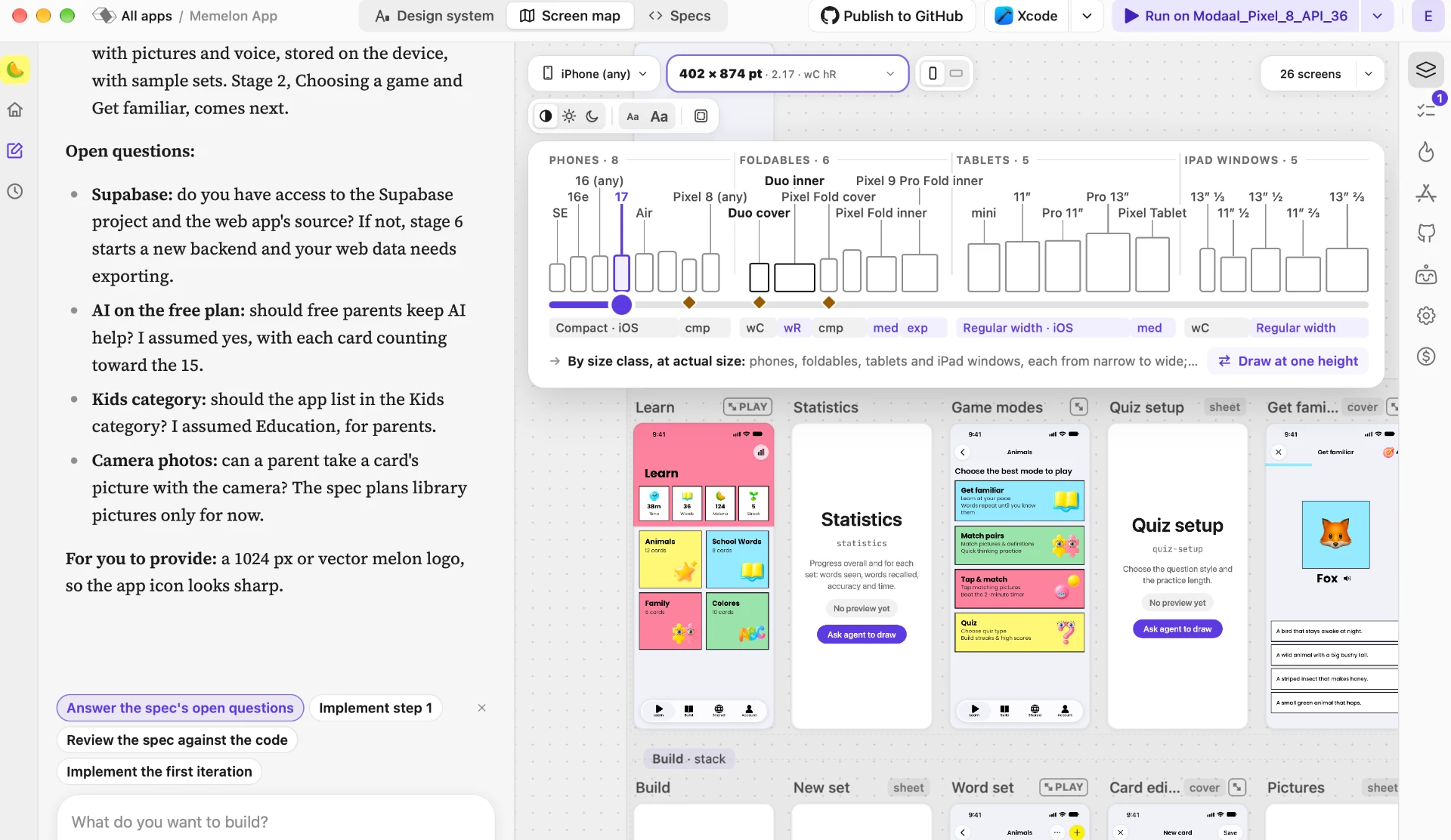
- Your screens appear on the Screen Map, where you adjust the design per device before any code is written.
- Your own AI agent (Claude Code, Codex, Cursor and ten more) builds the apps in Swift and Kotlin from one shared core, so both apps behave the same.
- You build on your own Mac with Xcode and ship through TestFlight and the App Store, and through Google Play for Android.
You own the code and can export it at any time. Keep your existing backend so the web app and the mobile apps share the same users and data.
Checklist
- List every job users do with your product: what, where, how often, which device.
- Mark the jobs that happen on the phone.
- Match each phone job to a capability: push, camera, location, offline, health, widgets.
- Pick web only, mobile only, or both.
- Pick how to build: app shell, cross-platform, or native.
- Keep one backend for web and mobile.
Keep reading
- Native app vs web app
How the two technologies differ.
- PWA vs native app
What a home-screen web app can and cannot do.
- Native vs cross-platform
Swift and Kotlin compared with React Native and Flutter.
- Turn a website into an app
The routes from a website to the App Store.
Your jobs land in the Phone column? Build the mobile app.
Paste your web app's URL into Modaal. Your own AI agent rebuilds it as native iOS and Android apps on the backend you already have.